> ## Documentation Index
> Fetch the complete documentation index at: https://docs.learningcommons.org/llms.txt
> Use this file to discover all available pages before exploring further.
# Quickstart
> Learn the common workflow for running any evaluator: choose content, run the evaluator, and review results.
export const EarlyAccessCallout = ({children}) => ;
## What you'll do
Run our [Literacy evaluators](/evaluators/literacy-evaluators/) on some text to evaluate it for a given grade level.
| Method | When to use |
| :---------------------------------------------- | :-------------------------------------------------- |
| [Evaluators Playground](#evaluators-playground) | For a quick demo of how evaluators work |
| [SDK](#sdk) | To integrate into your TypeScript or Python project |
| [Python notebook](#python-notebooks) | For quick prototyping |
## What you'll need
* Text you want to evaluate
* Grade level of the intended audience
* API keys required by the evaluators you want to use Not required for [Evaluators Playground](#evaluators-playground)
### Required API keys
By default, each evaluator uses a provider and model that we have tested for reliability for that task.
As a result, different evaluators require different API keys.
| Evaluator | Required API key(s) |
| -------------------------------------------------------------------------------------------------------------------------------------------------------------------------------------------------------------- | --------------------------------------------------------------------------------- |
| [Literacy evaluators](/evaluators/literacy-evaluators)
(except for [Vocabulary](/evaluators/literacy-evaluators/vocabulary) and [Sentence Structure](/evaluators/literacy-evaluators/sentence-structure)) | [Google](https://aistudio.google.com/) |
| [Vocabulary](/evaluators/literacy-evaluators/vocabulary) | [Google](https://aistudio.google.com/) and [OpenAI](https://platform.openai.com/) |
| [Sentence Structure](/evaluators/literacy-evaluators/sentence-structure) | [OpenAI](https://platform.openai.com/) |
| [Feedback evaluators](/evaluators/feedback-evaluators) | [OpenAI](https://platform.openai.com/) |
| [Standards evaluators](/evaluators/standards-evaluators) | [Anthropic](https://claude.ai/) |
You can override our evaluators' defaults with any
[Google](https://aistudio.google.com/),
[OpenAI](https://platform.openai.com/), or [Anthropic](https://claude.ai/)
model. When overriding with an Anthropic model, an Anthropic API key is
required.
## Steps
The [Evaluators Playground](https://platform.learningcommons.org/apps/evaluators/playground) ↗ is the easiest way to see our evaluators in action.
Choose the grade level of your intended audience.
Copy and paste the content you want to evaluate.
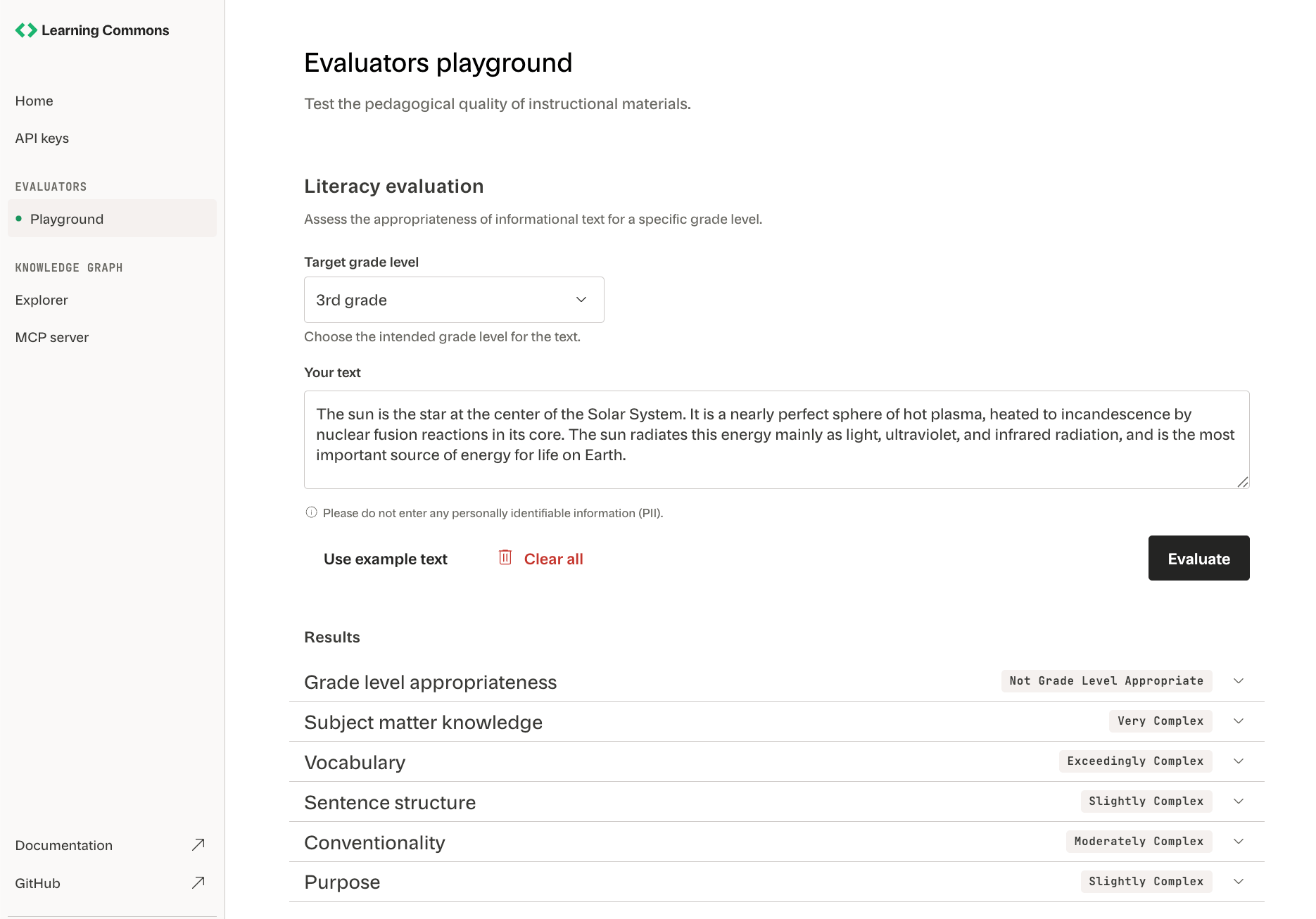 Click **Evaluate** to run our [Literacy evaluators](/evaluators/literacy-evaluators/introduction) on your text.
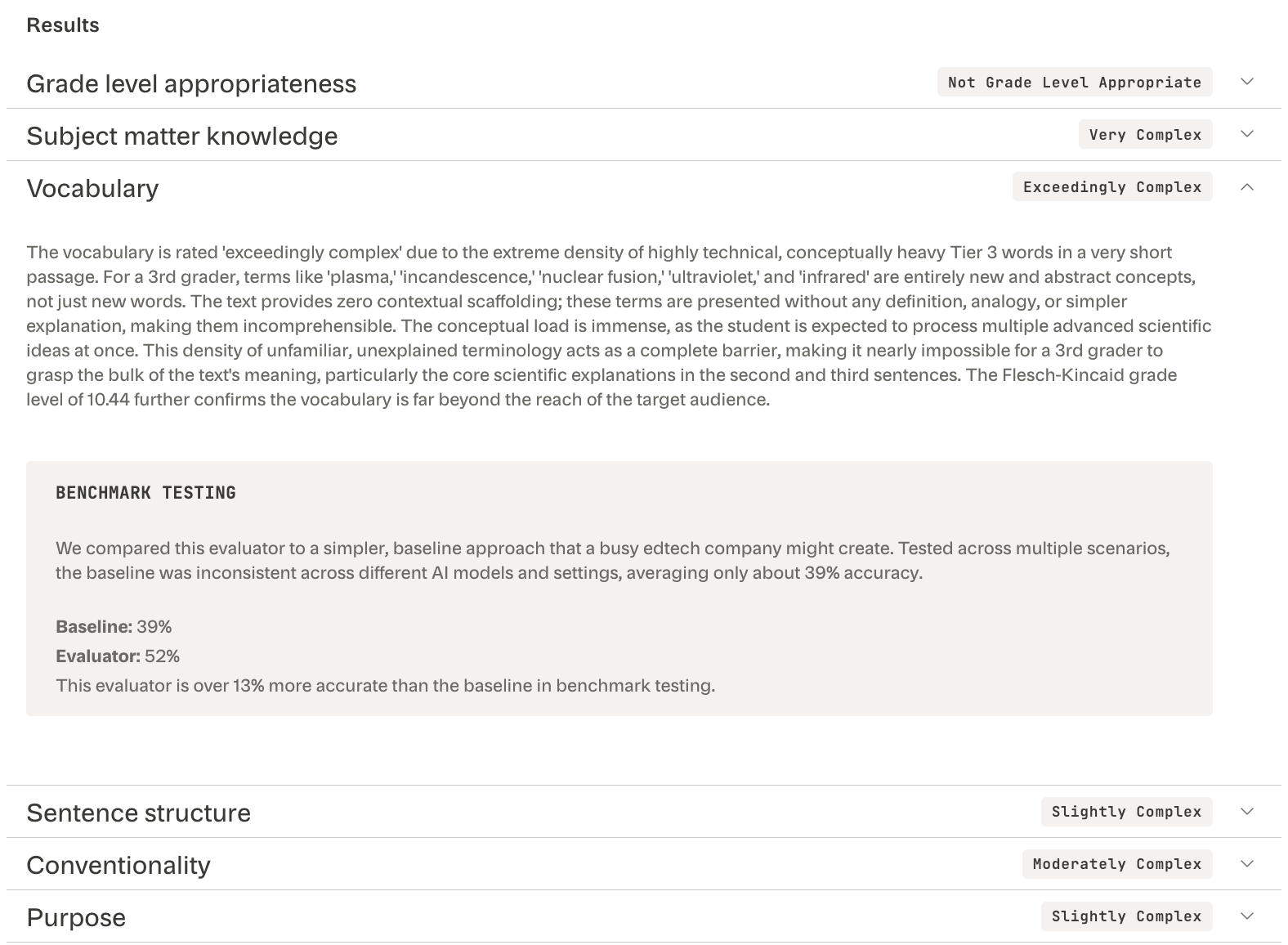
Expand each evaluator's results to see its:
* Text complexity score (e.g., "Exceedingly complex")
* Reasoning (e.g., "conceptually heavy Tier 3 words")
* Performance relative to a minimal [baseline prompt](/evaluators/understanding-evaluators/core-concepts#baseline-prompt) (e.g., "13% more accurate")
Click **Evaluate** to run our [Literacy evaluators](/evaluators/literacy-evaluators/introduction) on your text.
Expand each evaluator's results to see its:
* Text complexity score (e.g., "Exceedingly complex")
* Reasoning (e.g., "conceptually heavy Tier 3 words")
* Performance relative to a minimal [baseline prompt](/evaluators/understanding-evaluators/core-concepts#baseline-prompt) (e.g., "13% more accurate")
 The Evaluators Playground is primarily a demo. Check out the [SDK](#sdk) or [Python notebooks](#python-notebooks) when implementing evaluators into your automated processes.
This functionality is actively evolving. Changes may occur as we expand
capabilities and improve accuracy and reliability. Email
[support@learningcommons.org](mailto:support@learningcommons.org) ↗ with your
feedback or issues.
Run evaluators from your project by installing the SDK of your choice.
| Language | Installation | Latest version |
| ---------- | -------------------------------------------------------------------------------------------------------------------------------------------- | ------------------------------------------------------------------------------------------------------------------------------------------------------------------------------------- |
| TypeScript | [GitHub](https://github.com/learning-commons-org/evaluators/tree/main/sdks/typescript?utm_source=docs\&utm_medium=evaluators#installation) ↗ | [
The Evaluators Playground is primarily a demo. Check out the [SDK](#sdk) or [Python notebooks](#python-notebooks) when implementing evaluators into your automated processes.
This functionality is actively evolving. Changes may occur as we expand
capabilities and improve accuracy and reliability. Email
[support@learningcommons.org](mailto:support@learningcommons.org) ↗ with your
feedback or issues.
Run evaluators from your project by installing the SDK of your choice.
| Language | Installation | Latest version |
| ---------- | -------------------------------------------------------------------------------------------------------------------------------------------- | ------------------------------------------------------------------------------------------------------------------------------------------------------------------------------------- |
| TypeScript | [GitHub](https://github.com/learning-commons-org/evaluators/tree/main/sdks/typescript?utm_source=docs\&utm_medium=evaluators#installation) ↗ | [  ](https://www.npmjs.com/package/@learning-commons/evaluators) |
| Python | [GitHub](https://github.com/learning-commons-org/evaluators/tree/main/sdks/python?utm_source=docs\&utm_medium=evaluators#installation) ↗ | [
](https://www.npmjs.com/package/@learning-commons/evaluators) |
| Python | [GitHub](https://github.com/learning-commons-org/evaluators/tree/main/sdks/python?utm_source=docs\&utm_medium=evaluators#installation) ↗ | [  ](https://pypi.org) |
[Contact us](mailto:support@learningcommons.org) ↗ to request additional SDK
language support. You can also [sign up on the Learning Commons
Platform](http://platform.learningcommons.org/?utm_source=docs\&utm_medium=evals) ↗
for updates on availability.
Import evaluators to start evaluating text in your project:
```typescript TypeScript theme={null}
import { GradeLevelAppropriatenessEvaluator } from "@learning-commons/evaluators";
const evaluator = new GradeLevelAppropriatenessEvaluator({
googleApiKey: process.env.GOOGLE_API_KEY,
});
const text = "The cat's out of the bag now.";
const result = await evaluator.evaluate(text);
console.log(result.score); // 4-5
```
```python Python theme={null}
import logging
from learning_commons_evaluators import (
GradeLevelAppropriateness,
GradeLevelAppropriatenessEvaluationInput,
GoogleLLMProviderConfig,
create_config_no_telemetry,
)
# Logger
logging.basicConfig(level=logging.INFO)
# Config with Google API key
config = create_config_no_telemetry(
google_llm_provider_config=GoogleLLMProviderConfig(api_key="your-google-key"),
)
# Instantiate GradeLevelAppropriatenessEvaluator with created config
evaluator = GradeLevelAppropriatenessEvaluator(config)
# Evaluate some text for grade level appropriateness
result = evaluator.evaluate_sync(
GradeLevelAppropriatenessEvaluationInput(text="The cat's out of the bag now.")
)
print(result.answer.label) # e.g. "Moderately complex"
print(result.explanation.summary) # Reasoning for the score
```
See the [SDK API Reference](/evaluators/sdk-api-reference/overview) for more implementation details.
The Python interpreter powers our evaluators. All [downloadable
examples](https://github.com/learning-commons-org/evaluators/tree/main/evals?utm_source=docs\&utm_medium=evaluators) ↗
and tutorials are provided as Python snippets.
Install Python 3.10 or newer. To verify your version of Python:
```shell theme={null}
python3 --version
```
Creating an isolated environment prevents conflicts between Python packages used in this project and others on your system:
```shell theme={null}
python3 -m venv .venv
source .venv/bin/activate # Activates environment
```
Remember to activate the virtual environment for each new shell session.
Install all required packages listed in [`requirements.txt`](https://github.com/learning-commons-org/evaluators/blob/main/evals/requirements.txt?utm_source=docs\&utm_medium=evaluators) ↗:
```shell theme={null}
pip install -r evals/requirements.txt
```
Set your API keys as environment variables in your shell session:
```shell theme={null}
export OPENAI_API_KEY="sk-your-key-here"
export GOOGLE_API_KEY="your-key-here"
```
Start a Jupyter Notebook in your web browser (usually at `http://localhost:8888`):
```shell theme={null}
jupyter lab
```
Create a new notebook by clicking the **Notebook: Python 3 (ipykernel)** tile in the Jupyter Lab launcher. Alternatively, select **File > New > Notebook > Python 3 (ipykernel)** in the menu.
Run an evaluator by copying the code from our [
examples](https://github.com/learning-commons-org/evaluators/tree/main/evals?utm_source=docs\&utm_medium=evaluators) ↗ into the cells of your notebook.
You can also use an IDE with Python and Jupyter Notebook support (e.g. VS Code
with Microsoft's
[Python](https://marketplace.visualstudio.com/items?itemName=ms-python.python)
and
[Jupyter](https://marketplace.visualstudio.com/items?itemName=ms-toolsai.jupyter)
extensions).
Install Python 3.10 or newer. To verify your version of Python:
```shell theme={null}
python3 --version
```
In Command Prompt:
```shell theme={null}
python -m venv .venv
.venv\Scripts\activate
```
Or in PowerShell:
```shell theme={null}
python -m venv .venv
.venv\Scripts\Activate.ps1
```
Remember to activate the virtual environment for each new shell session.
Install all required packages listed in [`requirements.txt`](https://github.com/learning-commons-org/evaluators/blob/main/evals/requirements.txt?utm_source=docs\&utm_medium=evaluators) ↗:
```shell theme={null}
pip install -r evals/requirements.txt
```
Set your API keys as environment variables in Command Prompt:
```shell theme={null}
export OPENAI_API_KEY="sk-your-key-here"
export GOOGLE_API_KEY="your-key-here"
```
Or in PowerShell:
```shell theme={null}
$env:OPENAI_API_KEY="sk-your-key-here"
$env:GOOGLE_API_KEY="your-key-here"
```
Start a Jupyter Notebook in your web browser (usually at `http://localhost:8888`):
```shell theme={null}
jupyter lab
```
Create a new notebook by clicking the **Notebook: Python 3 (ipykernel)** tile in the Jupyter Lab launcher. Alternatively, select **File > New > Notebook > Python 3 (ipykernel)** in the menu.
Run an evaluator by copying the code from our [
examples](https://github.com/learning-commons-org/evaluators/tree/main/evals?utm_source=docs\&utm_medium=evaluators) ↗ into the cells of your notebook.
You can also use an IDE with Python and Jupyter Notebook support (e.g. VS Code
with Microsoft's
[Python](https://marketplace.visualstudio.com/items?itemName=ms-python.python)
and
[Jupyter](https://marketplace.visualstudio.com/items?itemName=ms-toolsai.jupyter)
extensions).
](https://pypi.org) |
[Contact us](mailto:support@learningcommons.org) ↗ to request additional SDK
language support. You can also [sign up on the Learning Commons
Platform](http://platform.learningcommons.org/?utm_source=docs\&utm_medium=evals) ↗
for updates on availability.
Import evaluators to start evaluating text in your project:
```typescript TypeScript theme={null}
import { GradeLevelAppropriatenessEvaluator } from "@learning-commons/evaluators";
const evaluator = new GradeLevelAppropriatenessEvaluator({
googleApiKey: process.env.GOOGLE_API_KEY,
});
const text = "The cat's out of the bag now.";
const result = await evaluator.evaluate(text);
console.log(result.score); // 4-5
```
```python Python theme={null}
import logging
from learning_commons_evaluators import (
GradeLevelAppropriateness,
GradeLevelAppropriatenessEvaluationInput,
GoogleLLMProviderConfig,
create_config_no_telemetry,
)
# Logger
logging.basicConfig(level=logging.INFO)
# Config with Google API key
config = create_config_no_telemetry(
google_llm_provider_config=GoogleLLMProviderConfig(api_key="your-google-key"),
)
# Instantiate GradeLevelAppropriatenessEvaluator with created config
evaluator = GradeLevelAppropriatenessEvaluator(config)
# Evaluate some text for grade level appropriateness
result = evaluator.evaluate_sync(
GradeLevelAppropriatenessEvaluationInput(text="The cat's out of the bag now.")
)
print(result.answer.label) # e.g. "Moderately complex"
print(result.explanation.summary) # Reasoning for the score
```
See the [SDK API Reference](/evaluators/sdk-api-reference/overview) for more implementation details.
The Python interpreter powers our evaluators. All [downloadable
examples](https://github.com/learning-commons-org/evaluators/tree/main/evals?utm_source=docs\&utm_medium=evaluators) ↗
and tutorials are provided as Python snippets.
Install Python 3.10 or newer. To verify your version of Python:
```shell theme={null}
python3 --version
```
Creating an isolated environment prevents conflicts between Python packages used in this project and others on your system:
```shell theme={null}
python3 -m venv .venv
source .venv/bin/activate # Activates environment
```
Remember to activate the virtual environment for each new shell session.
Install all required packages listed in [`requirements.txt`](https://github.com/learning-commons-org/evaluators/blob/main/evals/requirements.txt?utm_source=docs\&utm_medium=evaluators) ↗:
```shell theme={null}
pip install -r evals/requirements.txt
```
Set your API keys as environment variables in your shell session:
```shell theme={null}
export OPENAI_API_KEY="sk-your-key-here"
export GOOGLE_API_KEY="your-key-here"
```
Start a Jupyter Notebook in your web browser (usually at `http://localhost:8888`):
```shell theme={null}
jupyter lab
```
Create a new notebook by clicking the **Notebook: Python 3 (ipykernel)** tile in the Jupyter Lab launcher. Alternatively, select **File > New > Notebook > Python 3 (ipykernel)** in the menu.
Run an evaluator by copying the code from our [
examples](https://github.com/learning-commons-org/evaluators/tree/main/evals?utm_source=docs\&utm_medium=evaluators) ↗ into the cells of your notebook.
You can also use an IDE with Python and Jupyter Notebook support (e.g. VS Code
with Microsoft's
[Python](https://marketplace.visualstudio.com/items?itemName=ms-python.python)
and
[Jupyter](https://marketplace.visualstudio.com/items?itemName=ms-toolsai.jupyter)
extensions).
Install Python 3.10 or newer. To verify your version of Python:
```shell theme={null}
python3 --version
```
In Command Prompt:
```shell theme={null}
python -m venv .venv
.venv\Scripts\activate
```
Or in PowerShell:
```shell theme={null}
python -m venv .venv
.venv\Scripts\Activate.ps1
```
Remember to activate the virtual environment for each new shell session.
Install all required packages listed in [`requirements.txt`](https://github.com/learning-commons-org/evaluators/blob/main/evals/requirements.txt?utm_source=docs\&utm_medium=evaluators) ↗:
```shell theme={null}
pip install -r evals/requirements.txt
```
Set your API keys as environment variables in Command Prompt:
```shell theme={null}
export OPENAI_API_KEY="sk-your-key-here"
export GOOGLE_API_KEY="your-key-here"
```
Or in PowerShell:
```shell theme={null}
$env:OPENAI_API_KEY="sk-your-key-here"
$env:GOOGLE_API_KEY="your-key-here"
```
Start a Jupyter Notebook in your web browser (usually at `http://localhost:8888`):
```shell theme={null}
jupyter lab
```
Create a new notebook by clicking the **Notebook: Python 3 (ipykernel)** tile in the Jupyter Lab launcher. Alternatively, select **File > New > Notebook > Python 3 (ipykernel)** in the menu.
Run an evaluator by copying the code from our [
examples](https://github.com/learning-commons-org/evaluators/tree/main/evals?utm_source=docs\&utm_medium=evaluators) ↗ into the cells of your notebook.
You can also use an IDE with Python and Jupyter Notebook support (e.g. VS Code
with Microsoft's
[Python](https://marketplace.visualstudio.com/items?itemName=ms-python.python)
and
[Jupyter](https://marketplace.visualstudio.com/items?itemName=ms-toolsai.jupyter)
extensions).